
1. Account-Wide Notification Settings
Set notification methods (Email, Push, Connected Apps) that apply to your entire account.
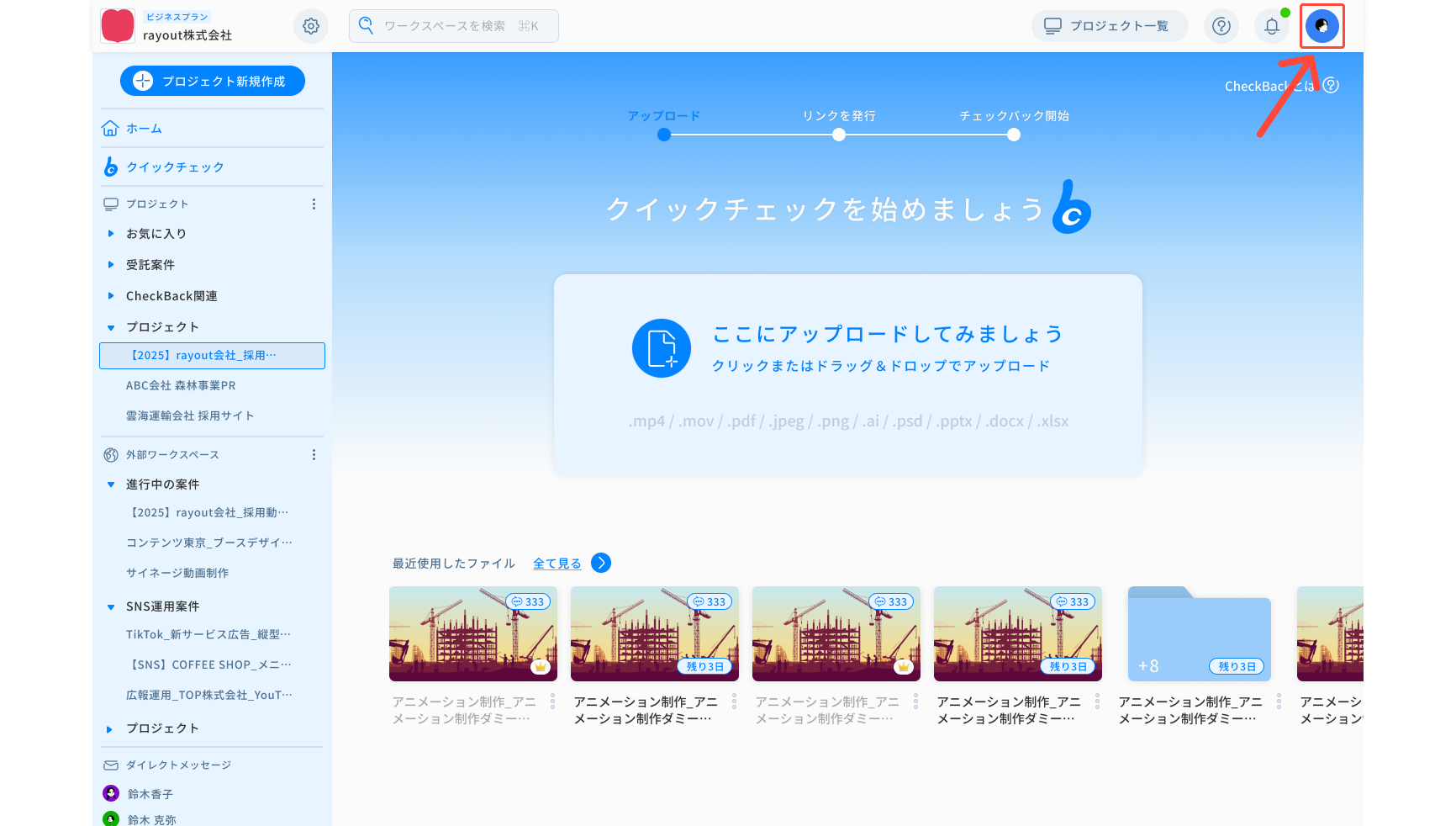
First, click the icon at the top right of the screen and go to Account Settings.
Email Notifications
Notifications are sent to the email address registered to your account.
You can choose to receive only mentions or turn off all notifications.
Push Notifications
If browser notifications are enabled, pop-up notifications will appear on your PC screen (e.g., top-right corner).
Options include “All Notifications,” “Mentions Only,” or “No Notifications.”
Note: Mobile browser notifications are not supported at this time.
App Integration (Slack / Teams)
You can receive notifications in Slack or Microsoft Teams.
Connect through the detailed menu in Account Settings and select which notifications to receive.
(Teams support coming soon)
Muted Projects List
Projects with notifications turned off will appear in the “Muted Projects” list.
You can turn notifications back on from this list at any time.
2. Project-Level Notification Settings
Notifications can be customized individually for each project (Email, Push, Slack).
However, account-level settings may override project-level settings.
Example:If email notifications are turned off in account settings,
turning email notifications on in a project will not send notifications.
Notification Methods
Email Notifications:Receive updates and mentions via email.
Push Notifications:Displayed on your PC when browser notifications are enabled.
Slack Notifications::Send notifications to the target Slack channel (can be set per project).
3. Notes on Notification Settings
- Account-level notification settings take priority over project-level settings.
- Browser permissions are required to receive push notifications.
- Turning off unnecessary notifications makes it easier to filter information.
- Muted projects can be managed in the “Muted Projects” list.